Showing posts with label Computer Tricks. Show all posts

Tuesday, 4 October 2016

Hidden Facebook keyboard Shortcuts You Don't Know About

If you are the type that loves making use of the keyboard for Navigation and performing some tasks instead of using the mouse, or perhaps your mouse is faulty and you wonder if you could use keyboard to access your facebook effectively without the mouse.
Read More »

Sunday, 18 September 2016

How to know if your computer was used in your Absence

Sometimes you may be suspecting that your system is being tampered in your absence and you wish to know if it was really operated by someone while you were away. This tutorial will provide a solution to this problem by following the few steps below.

Wish to know if your PC was used in your ?
then follow the steps below.

  • press your window key and type RUN on the search bar, then click enter. Orhold down your window key and press R, this will take you to the RUN dialog box.

  • Now  type “event vwr.msc” in the Run dialog box.

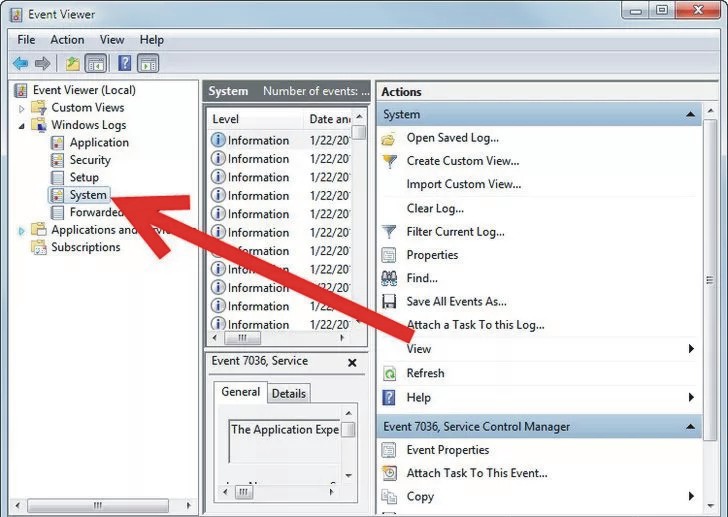
  • Note that the Events are always stored in three log files: Application, Security and System. And the amazing thing is that all these logs can be reviewed and archived.

  • Then, tap the ��System��located in the left-hand column for a list of events.

  • Then search for a date and time in which you are sure that you were not at home andyour computer was supposed to be switch off.

  • After the searching, there you can see how the being penetrate your PC and operated on it.
  • And also you still look at the time the computer was turned on and off i.e for a particular day. 


DON'T FORGET TO LEAVE YOUR COMMENTS AND ALSO SHARE THIS POST
Read More »

Friday, 16 September 2016

How To Post Your Facebook Status Upside Down

In this tutorial you will learn how to make a prank on your facebook status by turning your text upside down.
This is a very creative and amazing trick you can play with and make your friends wanting to know the magic.
Follow the simple steps below to achieve this.

How to make your facebook post upside down?

  • Enter the status you want to update on facebook on the text area and click FLIP.
  • Now copy the upside down text and paste it on your facebook status box and click update.
  • That’s all, your status will be updated upside down.


DON'T FORGET TO LEAVE YOUR COMMENTS AND ALSO SHARE THIS POST
Read More »

Thursday, 15 September 2016

How to Create a Nameless Folder in your Computer


Today we will talk about how you can create a nameless folder on your pc by following a simple step, this trick can be very essential especially when you want to keep a certain folder hidden from other users of your pc. This can also be an amazing trick to play around with and make your friends jealous.
Sometimes you may have some folders or files you don’t want your friends to see on your computer, so by making a nameless folder it makes the folder hardly noticeable by your friends.

How to create a nameless folder on windows:
1. First you have to create a New Folder in your desired location. 


2. Right Click on the New Folder and Select “Rename”. 


3. Now delete the text “New Folder” leaving your mouse pointer on the name box. 

4. Now Press and Hold your “ALT Key” and Type 0160 from your Num Lock Keypad. 

5. Then Leave the “ALT Key” and press the “Enter” key. 

Now you have successfully created a nameless folder on your Pc by following some few steps.
NOTE: the above step is applicable on windows operating system.


DON'T FORGET TO LEAVE YOUR COMMENTS AND ALSO SHARE THIS POST
Read More »

Thursday, 8 September 2016

How To Colorize Your Folder With Folder Colorizer


What is Folder Colorize ?
Folder Colorize is a software that Changes Your Computer Folder Color to any color of your choice.

How to Use This software?
  • First download the software and install it on your PC .

  • After the installation, right click on any folder and choose the color you desire to give the folder


Benefits of Folder Colorizer ?
  • You can easily identify any folder By their Color faster.
  • It Makes Your Folder Arrangement  Beautiful.
  • It looks very Unique


DON'T FORGET TO LEAVE YOUR COMMENTS AND ALSO SHARE THIS POST
Read More »

Tuesday, 6 September 2016

How To Transfer Data Or Connect Two Laptops Using WIFI

In this post you will learn how you can easily share data between two laptops or computers using Wifi.
Its very easy and simple and it doesn’t require any third party application.
Follow the steps below to get this done.


Steps To Connect Two PCs Via WiFi

Step 1. Open your control panel and click on the Network and internet option. Then you will see the network and sharing option there. Open it.


Step 2. Now you can see the Network and sharing Window with some options. You have to then click on the setup a new connection.

Step 3. Click on the choose connection option Dialog. In the dialog box look for set up wireless and adhoc network.


Step 4. On the next window you will see Network name, security type and security key option.

Step 5. Now you give a name to your network and choose your preferred  security option. The default security option there is WPA2-Personal which is more  stronger than the others.


Step 6. You can also leave the security option with no authentication and WEP.

Step 7. Don’t  forget to tick the checkbox with save this network option. If you fail to tick the option then after disconnecting the network you have to configure the network again.

Now your wireless network is ready and shown with other networks. Click on your network to connect. After connecting you will see a message at right hand side of network name waiting for users.
Now you can share data among Wireless Network..


Workgroup Sharing Settings

If the two laptops are of different makes and OS, then use the Workgroup sharing option because this option can share data among similar and different OS.

Step 1. First you need to check adhoc network you created, its network type should be Home or work.

Step 2. If not then open the network and sharing center then click on the name of network if it says home network then you do not need to change the network type otherwise you have to select home network.


Step 3. This setting allow you to share your data with other computers. Other thing you need to check is that all the computers are in the same workgroup.

Step 4. In Windows XP you can change Workgroup setting by right clicking on My Computer and select properties. Look for system properties and click on the Computer Name tab to change the settings.

Step 5. In Windows Vista and higher versions right click on computer and click on properties. You can change this settings in Computer name, Domain name and workgroup settings section.

Step 6. Last thing that we should apply to Windows 7 PC from which we want to access other computer is to open the Explorer and click on the Network option.


Step 7. After that you see a popup bar with Network discovery and file sharing are turn off. Network computers and devices are not visible. Turn on this settings to allow sharing of resources.

Follow the above steps to all the network computers to allow sharing with them.

Step 8. Now open the network and sharing center click on change advanced sharing option. Then tick the radio buttons shown in the images.


So these are few steps to connect two laptops wirelessly using WiFi. By doing this you can easily transfer data from one laptop to another via WiFi. You just need to share that file or folder on network which we had created between laptops.

DON'T FORGET TO LEAVE YOUR COMMENTS AND ALSO SHARE THIS POST
Read More »

Tuesday, 30 August 2016

How to Protect Your PC from Keyloggers

Keyloggers have been a major problem today as it does not require any prior knowledge of computers to use it. So, it is often used by hackers to steal passwords, credit card numbers and other confidential data from your computer. Below are some methods through which you can protect your computer from keyloggers:


1. Use a Good Antivirus

This is the first and the basic step that you need to take in order to protect your computer from keyloggers and other online threats. Use a good antivirus such as Kaspersky, Norton or McAfee and update it regularly.

2. Use a Good Antispyware

If you are a frequent Internet user, then you could be exposed to a number of spywares on a regular basis. Since keylogger is basically a spyware, it is better to install a good antispyware program. Make sure that the antivirus and the antispyware you use do not conflict with each other.

3. Antilogger can be Handy

Antiloggers are the programs that detect the presence of keyloggers on a given computer. Over the past few years, I have tested a lot of anti-logging programs and have found Zemana Antilogger as the best one.

Normally, a keylogger can easily be detected by a good antivirus program, but hackers may use some methods such as hexing, binding or crypting to make it harder for the antivirus program to detect it. In this case, Zemana Antilogger comes handy as this program is specially designed to protect your PC against harmful keyloggers.


4. Online Scanning

When ever you receive a suspicious file, you scan it with online scanners such as Multi engine antivirus scanner which scans your file with 24 popular antivirus engines and reports it back to you if the file is recognized as a virus or spyware. This ensures that none of the malicious programs can escape from being detected as there are 24 different antivirus engines involved in the scanning process.

5. Use Sandboxie

Sandboxie is another great program to help you protect your computer against harmful keyloggers and spywares. Sandboxie runs your computer in an isolated space which prevents your program from making permanent changes to other programs in your computer.

When ever you receive a file that looks suspicious, just run the program with Sandboxie so that, you can test it without the risk of making permanent changes to your computer.


To run a program in Sandboxie, follow the steps as mentioned below:


  1. Open the Sandboxie tool and click on sandbox menu on the top.
  2. Now go to Default sandbox.
  3. Then click on run any program.
  4. Now select the file you wish to run in sandboxie and click open.
6. Keyscrambler

Keyscrambler is one of the best program that offers protection against keyloggers. It is a small program which encrypts your keystrokes so that, even if your computer has a keylogger installed on it, only the encrypted keystrokes are captured by the keylogger and not the actual ones.


The free version of Keyscrambler currently supports Firefox, IE and a few other applications. However its premium version supports more than 160 applications.

DON'T FORGET TO LEAVE YOUR COMMENTS AND ALSO SHARE THIS POST
Read More »

Thursday, 25 August 2016

How to Change Your IP Address

Every time you connect to the Internet, your ISP (Internet Service Provider) assigns an IP address to your computer that makes it possible for websites and applications to keep track of your online activities and also pin point your physical location. Therefore, in order to protect your Internet privacy, it is often necessary to change your IP address.


Ways to Change IP Address

The following are some of the possible ways to change IP address of your computer:

1. Using a VPN: Best Way to Change IP Address

Even though there are several methods to change your IP address, using a VPN proxy is by far the best and most secure way. The following are some of the most popular VPN proxies that most Internet users prefer:

1. Hide My Ass VPN – Hide My Ass is one of the most popular and trusted VPN service that provides a fast and secure proxy server to allow people to easily change their IP address and also obtain IP address from any country of their choice.


2. VyprVPN – VyprVPN offers the world’s fastest VPN services to make it possible for its clients to easily change their real IP using a proxy and supports wide range of operating systems.


Advantages of using VPN over other methods:

Fast, secure and highly reliable. All your web traffic is encrypted to keep your data safe from hackers and also protect your privacy.
You can choose from a list of countries and locations to obtain a new IP address. This makes it possible to have your origin from any country of your choice.
Easily bypass regional blocks to access sites and content that are restricted for your location.
2.Change IP by Restarting the Router

Every time you connect to the Internet your ISP may assign a different IP to your computer called dynamic IP. If your Internet connection uses a dynamic IP you can easily change it just by restarting your network device such as modem/router. All you need to do is just turn off its switch for a few seconds and turn it on again to get a different IP address assigned.

Unlike using a VPN, this method has quite a few drawbacks. Your newly assigned IP will have the same location or country as before and therefore if you’re trying to bypass a country block it would not be possible. Moreover, if your Internet connection uses a static IP address, you will get the same IP assigned no matter how many times you restart your router.

3. Using Free Web Proxy to Change Your IP Address

If you cannot afford a VPN service or restarting the router doesn’t get you a new IP, you can try some of the free browser based proxy services that help you change your IP address and surf anonymously. The following are some of the websites that offer free proxy services:


Drawbacks of using free web proxies


Even though these services come free of cost they also come with some of the following drawbacks:

  • Most of them are slow and websites take a lot of time to load.
  • Security and privacy is questionable as most of these free services are unreliable.
  • Users have to bare with annoying ads and pop-ups as these sites need to generate revenue to compensate for free service.
  • Limited or no choice over the selection of your IP location.

How to Ensure that Your IP is Changed?

To know your current IP address just type what is my ip address on Google and your public IP address should be displayed in the search results. Once you’ve successfully implemented one of the above mentioned IP changing methods, you can re-check your IP on Google to make sure that you have got a new one.

 DON'T FORGET TO LEAVE YOUR COMMENT AND SHARE THIS POST
Read More »

Sunday, 21 August 2016

How to Convert and Download Audio from any Youtube Video

Today we will look at how you can convert any youtube video to mp3 with just a few steps without any third party software.


First Copy the URL of the youtube video you wish to convert.


Now open Youtube-mp3.org in your Browser and paste the youtube URL you copied  in the textbox provided . Click on Convert Video button. See image below.


Now Click on the Download button to download your Mp3 file of  the Youtube Video.


NOTE:the time taken for the conversion  depends on the size of the video.


It’s quite a simple step to easily convert your video to mp3 without going through the stress of downloading a third party software for this task.


DON'T FORGET TO LEAVE YOUR COMMENTS AND ALSO SHARE THIS POST
Read More »

Monday, 8 August 2016

The World's Most Dangerous Computer Viruses


Here are five most dangerous computer viruses of all time:

1. ILOVEYOU
Perhaps the most virulent computer virus ever created, the “ILOVEYOU” virus managed to wreck PCs all across the world. Infecting almost 10% of the world’s PCs connected to the Internet, the virus caused a total damage of around $10 billion.

The virus is transmitted via email with a subject line “ILOVEYOU,” which is a radical human emotion that no one can ignore. To make it even more alluring, the email contained an attachment that read something like this: Love-Letter-For-You.TXT.vbs. The moment someone opened the file, the virus emailed itself to the first 50 contacts available in the PC’s Windows address book.


2. Melissa
Melissa became the breaking news on March 26, 1999, after hitting the new age of emailing. Built by David L, Melissa was spread in the form of an email attachment by the name “list.doc.”


When a person clicked upon the attachment, the virus would find the Microsoft Outlook address book and email itself to the first 50 contacts on the list having a message “Here is that document you asked for…donot show anyone else.” Later on, FBI arrested David L and slapped him with a fine of $5000 for creating the wildest virus of its time.


3. My Doom
My Doom hit the malware world in 2004 and spread exponentially through email with random addresses of senders and subject lines. Infecting somewhere around two million PCs, My Doom smashed the cyber world by instigating a tremendous denial of service attack. It transmitted itself via email in a specially deceitful way that a receiver would first consider a bounced error message that read “Mail Transaction Failed.”

However, as soon as the receiver clicked upon the message, the attachment executed and the worm transmitted to email addresses found in the user’s address book. It is easy to believe that this mass mailer worm caused a damage of almost $38 billion.


4. Code Red
Taking advantage of the Microsoft Internet Information Server’s flaw, Code Red spread on the network servers in 2001. Here is an amusing fact about this dangerous virus—it didn’t need you to open an email attachment or execute a file; it just required an active Internet connection with which it ruined the Web page that you opened by displaying a text “Hacked by Chinese!” It’s no surprise that this virus devastated nearly $2.6 billion dollars by hitting almost one million PCs.

And in less than a week’s time, the virus brought down over 400,000 servers that included the White House Web server as well.


5. Sasser
Sasser was a Windows worm that was discovered in 2004. Apparently, it would slow down and crash the PC, making it even hard to reset without cutting the power. And its effects were surprisingly troublesome as well, with millions of PCs being infected and crucial, significant infrastructure affected.

The worm played on a buffer overflow susceptibility in Local Security Authority Subsystem Service (LSASS) that monitors the safety policy of local accounts causing crashes to the PC. The devastating effects of the virus were massive resulting in over a million infections. This included critical infrastructures, such as new agencies, hospitals, airlines, and public transportation.


6. Conficker


Also known as Downup or Downadup, Conficker is a worm of unknown authorship for Windows that made its first appearance in 2008. The name comes form the English word, configure and a German pejorative.It infects computers using flaws in the OS to create a botnet. The malware was able to infect more than 9 millions computers all around the world, affecting governments, businesses and individuals. It was one of the largest known worm infections to ever surface causing an estimate damage of $9 billion.
The worm works by exploiting a network service vulnerability that was present and unpatched in Windows. Once infected, the worm will then reset account lockout policies, block access to Windows update and antivirus sites, turn off certain services and lock out user accounts among many. Then, it proceeds to install software that will turn the computer into a botnet slave and scareware to scam money off the user. Microsoft later provided a fix and patch with many antivirus vendors providing updates to their definitions.


7. Flashback

Though not as damaging as the rest of the malware on this list, this is one of the few Mac malware to have gain notoriety as it showed that Macs are not immune. The Trojan was first discovered in 2011 by antivirus company Intego as a fake Flash install. In its newer incarnation, a user simply needs to have Java enabled (which is likely the majority of us). It propagates itself by using compromised websites containing JavaScript code that will download the payload. Once installed, the Mac becomes part of a botnet of other infected Macs.
The good news is that if it is infected, it is simply localized to that specific user’s account. The bad news is that more than 600,000 Macs were infected, including 274 Macs in the Cupertino area, the headquarters of Apple. Oracle published a fix for the exploit with Apple releasing an update to remove Flashback from people’s Mac. It is still out in the wild, with an estimate of 22,000 Macs still infected as of 2014.a


Computers are amazing, but they just do what they’re told, and when viruses tell them to do bad things, it can create a lot of damage.
Read More »

recent comments